Turning Bad Handwriting Into Editable Docs
Mar 5, 2026
Getting started with Claude Code is daunting. People all over the internet will tell you it can do anything — build entire apps, automate your business, make millions. But where do you actually start?
My approach has been to build things that solve real problems for me, however small. No million dollar ideas (I'm not sure I have any) or side-hustle projects. Just tools that fix genuine frustrations in my daily workflow. It's a great way to get to grips with how Claude Code works and how to work with it. Hopefully, you also end up with something useful at the end of it.
In this case, the frustration was getting my handwritten notes off a reMarkable tablet and into something I could actually use. Here's how it went.
I've always found that handwriting helps me think. Whether it's a first draft, a diagram or just a brain-dump, there's something to be said for putting pen to paper.
I'm also quite good at losing things, though — keys, receipts, and stray pieces of paper frequently dissapear. I got a reMarkable about four years ago with the ambition of making my notes more permanent and usable in my daily work.
The notes were stored, but I had a hard time actually getting them off the device. The reMarkable's value prop is that it's distraction-free, but the flip side was that transferring files to my laptop was painful. The sync never seemed to work properly, the desktop app was hard to use, and worst of all, the built-in handwriting recognition never really worked for me. In fairness, my handwriting is dreadful. Even I can't read it sometimes.
The software has improved a lot recently. When I open the desktop app now, my notebooks are synced almost instantly. But when blown up onto a laptop display, my messy notes and poorly drawn diagrams are still pretty horrible to look at. And the transcription still struggles to make sense of my scribbles.
Back when I started using Claude, I relied heavily on attaching screenshots and PDFs for context. Most of the time, whatever I shared would be deciphered without a problem. So now I had my reMarkable notes on my computer — what if Claude could handle the transcription?
The first pass
You can export pages from the reMarkable desktop app. Open it, navigate to the notebook, export each page one by one as a PDF, upload it to Claude. Claude reads the handwriting, gives you back the text.
To my surprise, Claude could pretty much make sense of my handwriting at the first time of asking. However, whilst the core functionality worked, the process surrounding it was painfully slow. Lots of clicking, lots of exporting, and then I'd have to copy the transcription out of the chat and put it somewhere useful. Say you have 5 pages from a notebook you want to convert — you have to export them one by one. That got tedious pretty quickly.
Building a pipeline
I looked for existing MCPs for reMarkable + Claude. Nothing reputable showed up, so I figured this was a good chance to build something myself.
The reMarkable desktop app syncs your notebooks to a local cache on your machine, so the data is already sitting on your computer. No API needed, no cloud calls. The MCP server just reads directly from that cache.
With Claude Code, I built a pipeline that finds synced notebooks in the local cache, converts the reMarkable's proprietary .rm files into PDFs (via SVG, using a couple of open-source libraries), and feeds them to Claude for transcription. The output gets saved as Markdown files in my Obsidian vault. Searchable, linkable, and alongside everything else I work on.
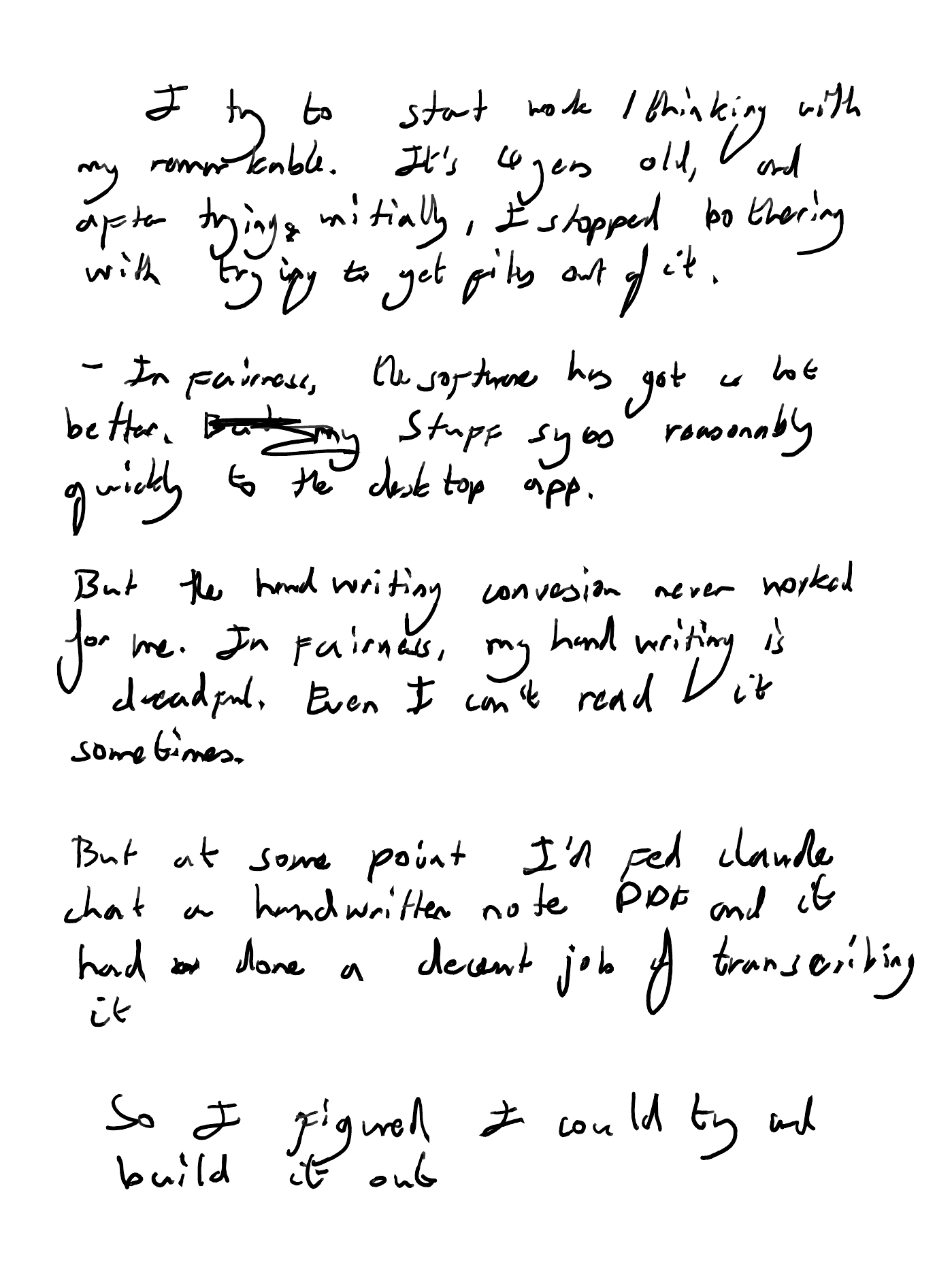
In fact, the first draft of this article started life as scribbled notes on my reMarkable. It went through the same pipeline — rendered, transcribed, saved as a Markdown file — and then I continued editing from there. If you want the full technical detail, it's in the project README.
Bringing it all together
The script worked and I started using it regularly. But I still had to direct Claude to the script and run it every time I wanted to use it. I opted to wrap the pipeline into an MCP server, so that Claude has direct access to the tools it needs to perform the task.
The last part was wrapping that into a skill — a reusable command that handles the whole workflow. Now, when I want to transcribe my notes, I type /remarkable-transcribe. Claude asks which notebook and which pages, pulls them from the reMarkable cache, renders them, reads my terrible handwriting, and saves clean Markdown to my vault. As part of the command, Claude has a document full of instructions that help to tailor the approach, and even manage the transcription to handle my handwriting quirks.
Transcribed notes are saved as .md files that feed into my folder structure. I use Obsidian to view them, but if I wanted to work on the file with others, I could easily push them to Notion or Whimsical and continue editing from the keyboard.
This was already a big win. If you took a minute to look at the image I shared, you'll have seen just how unintelligible my handwriting can be. My hand-drawn diagrams are even worse. But they're still a vital part of helping me think through problems. If Claude could tackle my handwriting, could it make sense of my fat marker sketches?
That's Part 2. Stay tuned.
The MCP server and rendering pipeline are open-source on GitHub. It's one of my first public projects, so I'm sure there's plenty to improve. If you try it out or have feedback, I'd genuinely love to hear it.
If you want to follow along, leave your email below. No spam, just new posts when they're ready.